Focused controls
Spam, AFK, trigger, and visuals — each section keeps its settings in one place with clear states and hotkeys.
RAPIDYCORE PRODUCT
SolvarSolvar is a Windows desktop app for Blade Ball. Timed spam, AFK mode, color-based triggers, and theme options — all in one window, no browser required.
In testing. Solvar has not been publicly released yet — access is limited while development finishes.
PRODUCT OVERVIEW
Solvar is built as a standalone Windows app — no browser, no extensions, no extra windows. Everything you need for Blade Ball lives in one clean interface that stays out of your way.
Spam, AFK, trigger, and visuals — each section keeps its settings in one place with clear states and hotkeys.
The guide and color matching walkthrough stay right here with the product, so you can set up without leaving the page.
Blue, purple, or green — pick the surface that fits your desktop. The interface stays quiet either way.
FEATURES
Timed LMB spam with configurable delay. Assign any hotkey, toggle on or off.
Set an interval and let Solvar keep your session alive. Status, timing, and last-key info visible in one view.
Two independent trigger slots with color detection, scan size, and cooldown. Match the Blade Ball highlight color for best results.
Switch between blue, purple, and green themes. Logo video overlay option for a more personalized desktop surface.
ACCESS
There is no separate Solvar plan. A subscription is bought once, from RapidyCore, and it opens the products on the home page — Solvar included. Prices and durations live there; every plan opens the same set of products.
Solvar is in testing. Access is limited while the product is being finished.
BLADE BALL GUIDE
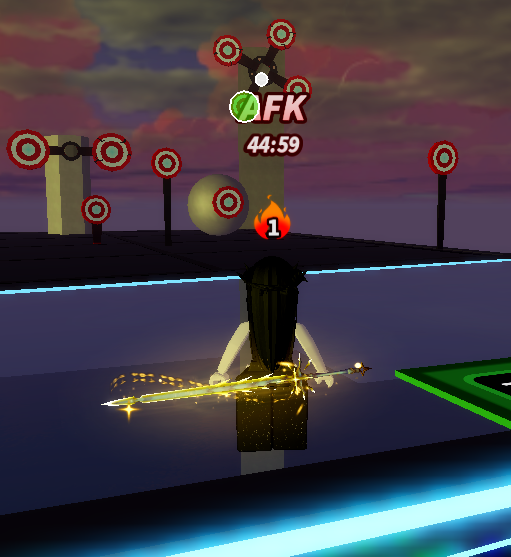
Set the Blade Ball highlight to the same color configured in Solvar’s Trigger Bot. The following existing game guidance is kept with the product.
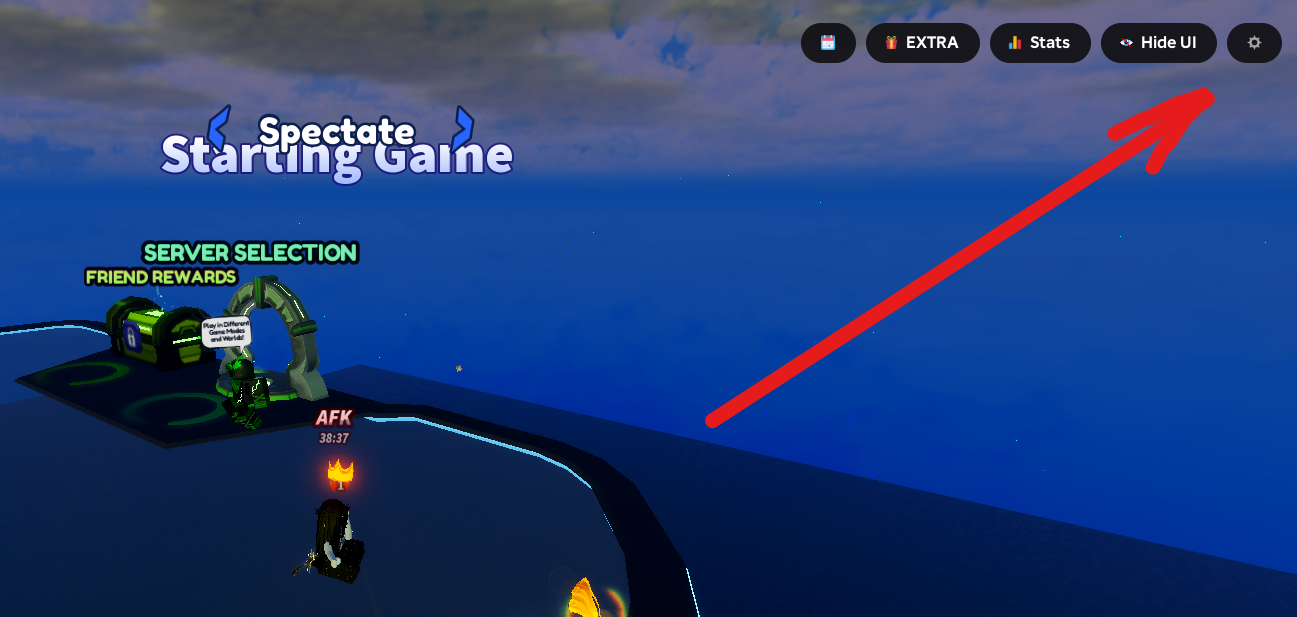
Click the gear icon in the top-right corner of the Blade Ball interface.
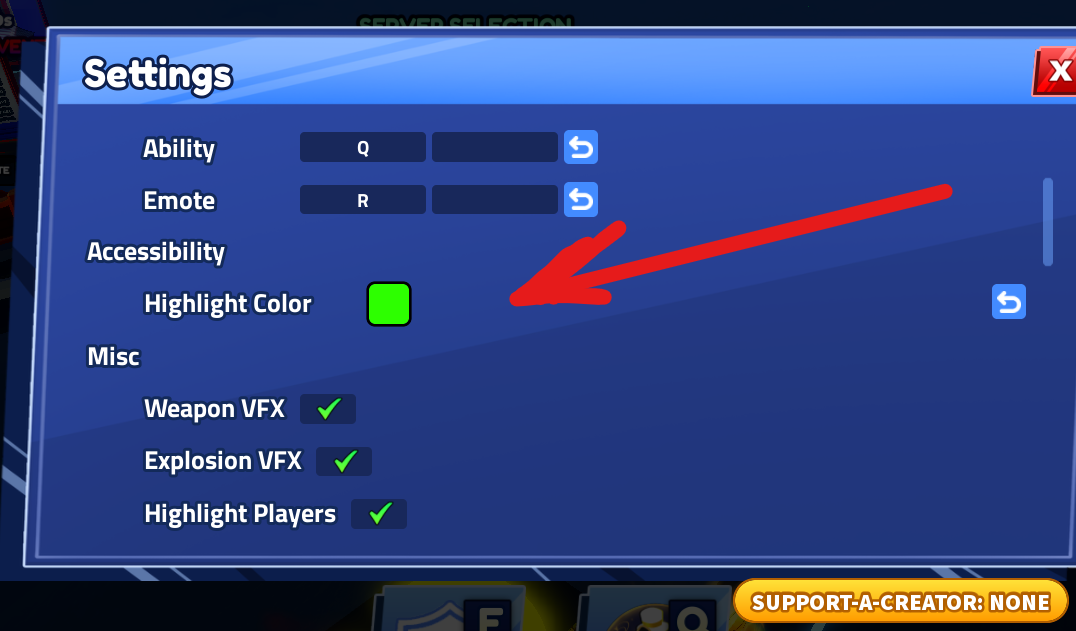
Select the highlight color setting shown in the game interface.
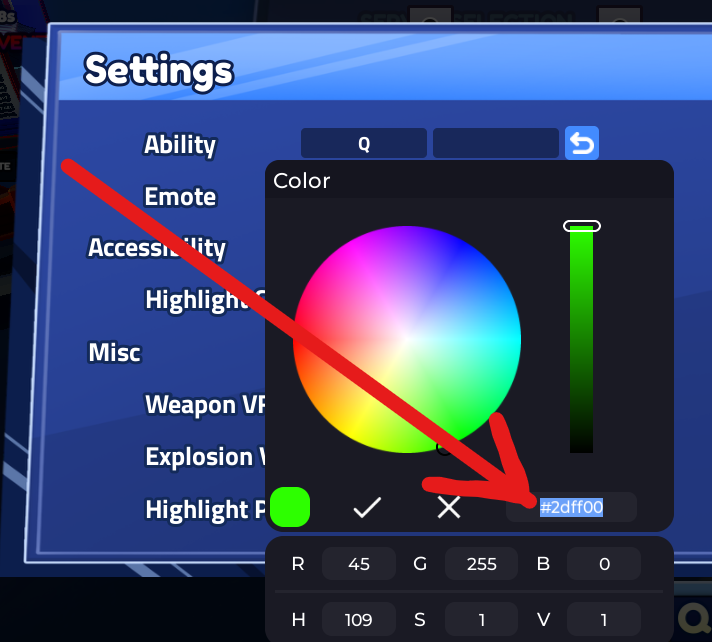
Use the same color as the target color configured in Solvar.
TRIGGER REACTS
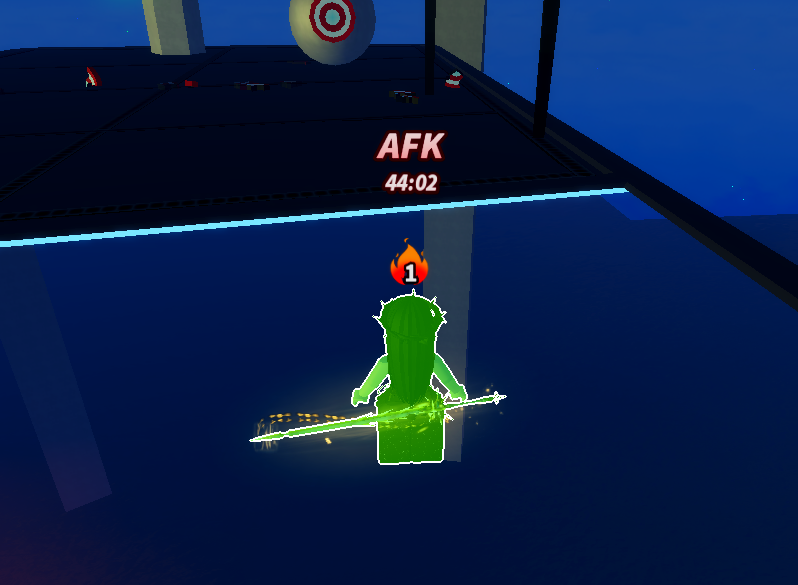
The required visible condition is present in the scan area.
TRIGGER DOES NOT REACT
The configured visible match is not present.
NEED HELP?
For account issues, product questions, or anything else — head back to RapidyCore where the full support and account system lives.
Contact support →WELCOME BACK
Sign in with your email and password, then confirm the emailed code.
YOUR ACCOUNT
Email:
Account ID:
Access:
Remaining:
Free trial not claimed yet — it is claimed in our Telegram bot, and it needs a Telegram account linked to this one.
New to RapidyCore?